Pipeline Templates
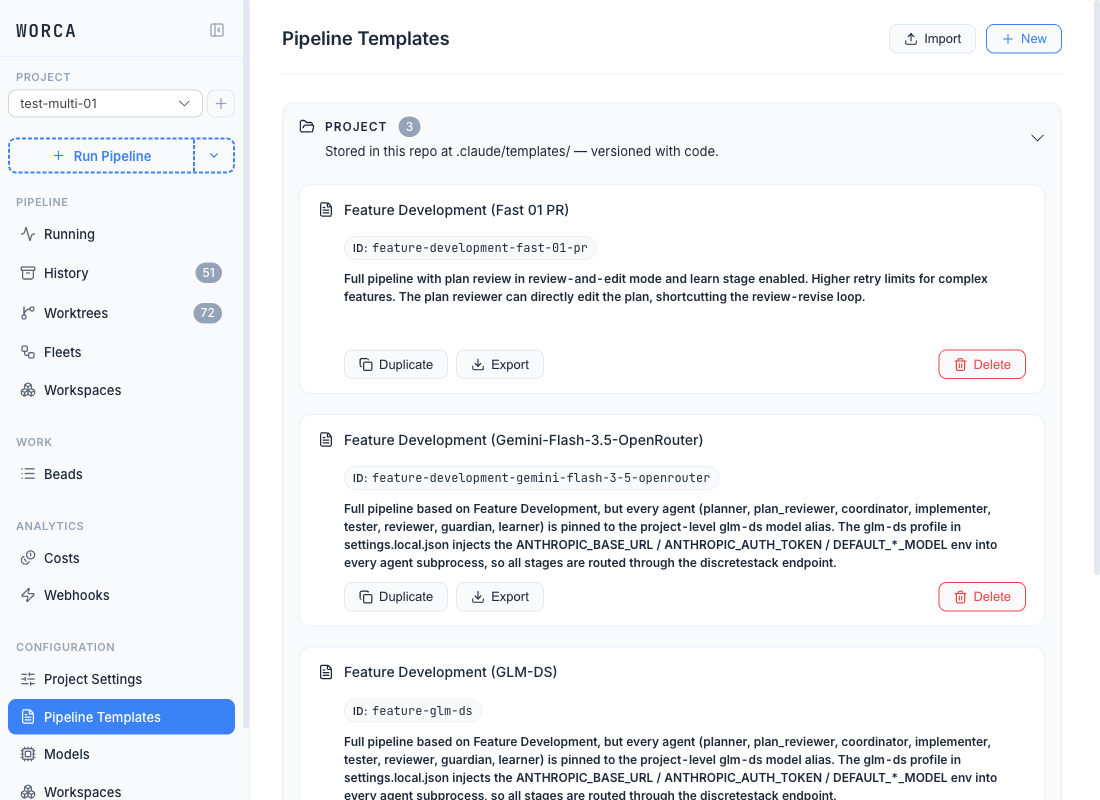
The Pipeline Templates page lives under Configuration in the sidebar, next to Project Settings. From it you can browse every template across all three tiers (built-in, user, project), create new ones with a structured editor, duplicate built-ins as a starting point, and set a project default — without touching the CLI or editing JSON by hand.
Opening the editor
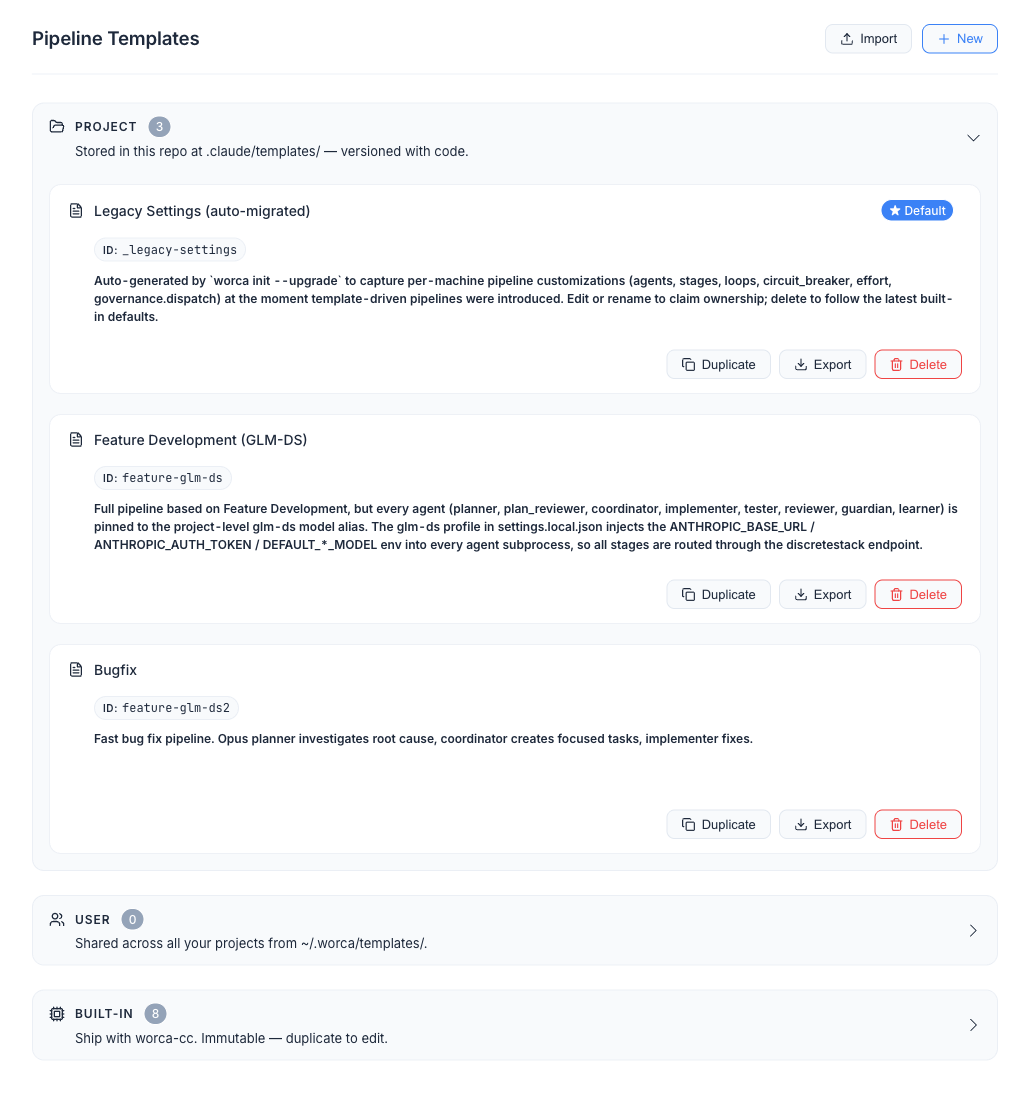
Section titled “Opening the editor”Click Pipeline Templates in the sidebar. You get three collapsible tier sections:
| Section | Default state | Contains |
|---|---|---|
| Project | Open | Templates defined in .claude/templates/ — committed, shared with the team. |
| User | Collapsed | Templates defined in ~/.worca/templates/ — available across all your projects. |
| Built-in | Collapsed | Templates shipped with worca (feature, feature-fast, feature-minor, bugfix, quick-fix, refactor, investigate, test-only). Read-only — you can duplicate, export, or view them, but not edit them in place. |
Each section header shows a count badge. The card for the current project default is marked with a ★ Default badge.
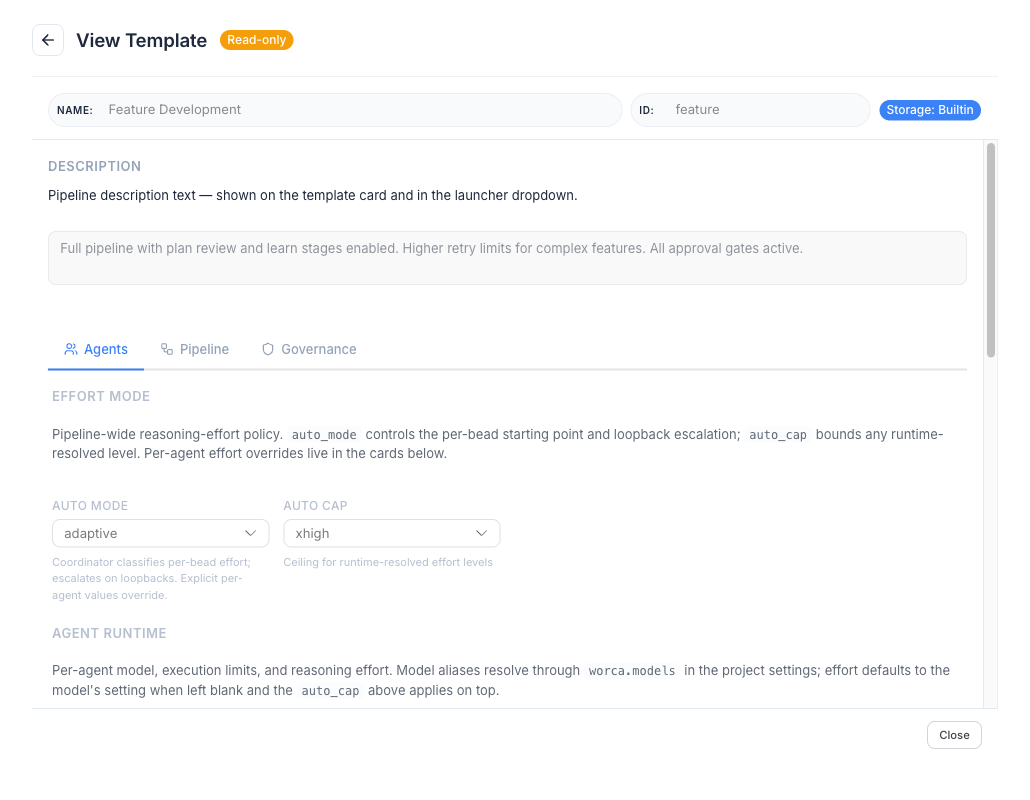
Cards are clickable. Clicking anywhere on a card opens the editor — in edit mode for project and user templates, in read-only View Template mode for built-ins.
Template tiers and shadowing
Section titled “Template tiers and shadowing”Templates resolve by id — project beats user beats built-in, with no cross-tier merging. If you create a project template with the same id as a built-in (feature, say), the project template replaces the built-in for that project. The list shows all three tiers separately so you can see what exists where; the resolution rule is what matters at run launch.
For the full merge story — how templates interact with project settings, model aliases, and CLI overrides — see Configuration precedence.
Creating a template
Section titled “Creating a template”Click New template in the list view. You’re asked for a scope (project or user) and an id; the editor then opens on the new template.
Templates have one of two starting points:
- From scratch — the new editor opens with empty defaults. Fill in only the keys you want to override; everything else falls through to worca’s code defaults.
- From a built-in — click Duplicate on any built-in card and pick a destination scope + id. The copy carries the built-in’s values as a starting point.
The editor
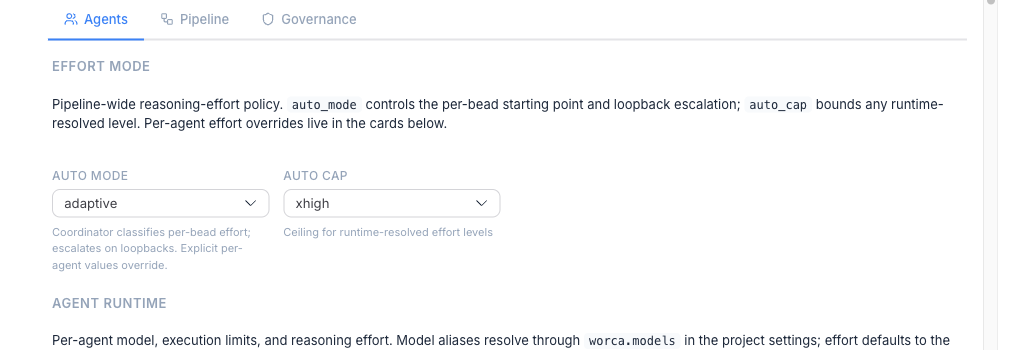
Section titled “The editor”The editor is organized as a top subheader (template-level metadata) and three tabs.
Top subheader
Section titled “Top subheader”A row of “field pills” carrying the template’s metadata:
- Name — the human-readable label shown on cards and in the run launcher.
- ID — the slug you reference at launch (
--template <id>orworca.default_template). Underscores are allowed. If the id collides with another template in the same tier, an inline yellow warning badge appears next to the field with a tooltip explaining the collision; Save is disabled until you resolve it. - Storage — a read-only badge showing the tier (Project / User / Built-in).
- ★ Default toggle — flips this template as the project default. Mirrored on the card-level Set as default action.
- Description — a longer free-text field that appears below the name on cards and as a tooltip in the launcher.

| Tab | What it controls | Maps to |
|---|---|---|
| Agents | Per-agent model, max turns, effort, and (Coordinator only) max beads; pipeline-level auto mode and auto cap for adaptive effort escalation. The Model dropdown lists every alias across Project / User / Built-in tiers with a tier section header and a ↗ jump-to-Models link. The Effort field carries an advisory yellow chip when set below the recommended floor for that role. | worca.agents.*, worca.effort |
| Pipeline | Per-stage on/off toggles and agent picker; approval gates (plan / PR); CLAUDE.md load mode; retry loops (implement/test, review, plan-review); circuit breaker (enable + max consecutive failures). | worca.stages, worca.claude_md_mode, worca.loops, worca.circuit_breaker, worca.milestones |
| Governance | Per-agent allowlists for tools, skills, and subagents. | worca.governance.dispatch |
| Overlays | Read-only view of the prompt overlay files (agents/*.md) attached to this template, grouped by stage with sub-tabs for agent prompt and user prompt. Visible only when at least one overlay file is present. Overlays arrive via import, duplicate, or a filesystem drop — the tab surfaces them regardless of origin. | agents/ directory |
The editor only writes the delta — keys you leave blank inherit defaults, keeping templates lean and upgrade-friendly. It runs the same deep-merge simulation the pipeline uses at launch, so malformed config is caught before it hits disk.
Editing a template
Section titled “Editing a template”Click any project or user template card and the editor opens with current values pre-filled. Save writes to the template’s file and stays on the page with a transient “Saved” toast — useful for tuning across multiple tabs in one sitting. Export downloads the template as a bundle.
Read-only built-in templates
Section titled “Read-only built-in templates”Clicking a built-in card opens the editor in View Template mode: every field is read-only, the Save button is replaced by Close, and the only available actions are Duplicate and Export. To customize a built-in, duplicate it to your project or user scope and edit the copy.
Duplicating a template
Section titled “Duplicating a template”Click Duplicate on any card — or from inside the editor — to copy the template under a new id. You’re asked for a destination scope (project or user) and the new id; the copy is independent of the original. Duplicate is available on every tier, including built-ins (the canonical “customize a built-in” entry point).
You can also duplicate a built-in to the same id in project or user scope — that’s the canonical shadow flow: the built-in keeps existing but is replaced by your copy when worca resolves the id at run launch.
Setting a project default
Section titled “Setting a project default”Either flip the ★ Default toggle inside the editor, or click Set as default on a card. This writes worca.default_template in your project’s .claude/settings.json (as a { tier, id } object — not a bare string), so every run uses that template unless you override with --template at launch.
The toggle is available on Project and Built-in cards alike — built-ins ship with the worca-cc package, so pinning one as your project default is fully portable across collaborators. Only User-tier templates (which live in your ~/.worca/templates/ and never travel with the repo) are excluded.
The ★ Default badge moves to the newly selected card. To clear the default (so runs use raw project settings with no template), use Clear default or remove the worca.default_template key from Settings.
Exporting and importing
Section titled “Exporting and importing”-
Export — click Export on any card (or inside the editor). The format is chosen automatically:
.zipwhen the template has prompt overlay files (agents/*.md),.jsonfor config-only templates. Secrets are redacted in either format, safe to share or commit. Export works on every tier, including built-ins. -
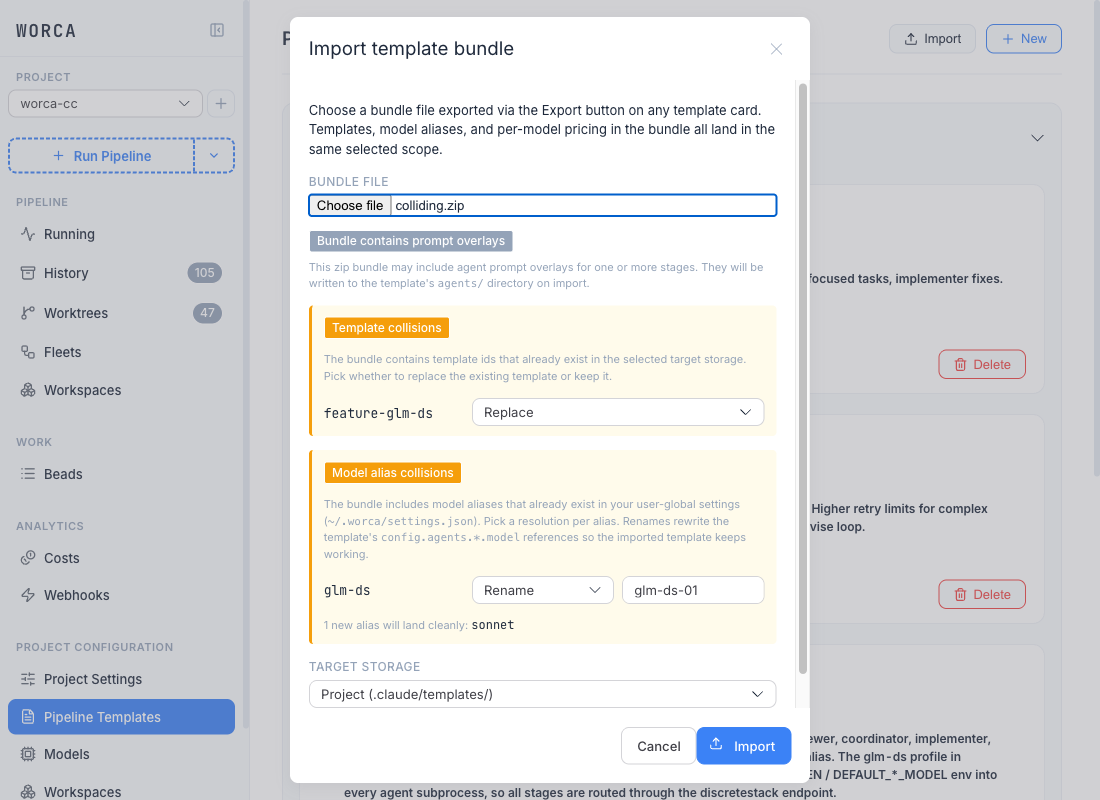
Import — click Import in the list view to upload a
.jsonor.zipbundle file. The UI runs a preview pass first and, if any collisions are detected, opens a dialog with two sections so you can decide what to do:- Template collisions — for each template id that already exists in the target scope, pick Replace (overwrite) or Skip (keep the existing).
- Model alias collisions — for each model alias in the bundle that already exists in the target scope (project or user), pick Rename (zero-padded
-NNsuffix; the imported template’sconfig.agents.*.modelreferences are rewritten transactionally), Overwrite (replace the existing definition), or Skip (keep the existing).
Click Import in the dialog footer to commit. The post-import view lists the templates that landed and any overlay files that came in. Imported aliases carry an
Imported · <bundle-name>provenance badge on the Models page that drops on the first UI save.
For the full export/import workflow including CLI commands, see Authoring, sharing & importing templates.
In-flight run guards
Section titled “In-flight run guards”Deleting a project or user template that is currently used by running pipelines shows a confirmation dialog with the count of in-flight runs. Templates resolve at run start, so existing runs aren’t affected by the delete — the guard just makes the relationship visible before you commit.
Built-in templates can’t be deleted; that action is hidden on built-in cards.
When the worca-cc CLI is missing or too old
Section titled “When the worca-cc CLI is missing or too old”The Pipeline Templates page delegates CRUD operations to the worca Python CLI. If the CLI isn’t installed — or is older than the version the UI requires — a degraded-mode banner appears at the top of the page:
Editing is disabled — this UI needs worca-cc X.Y or later.
In degraded mode, Create, Edit, Duplicate, Delete, and Import are disabled across all cards. Export still works, because it’s a read-only operation against the bundles on disk. Install or upgrade worca-cc to restore full editing.
See also
Section titled “See also”- Configuration precedence — how templates, settings, and CLI overrides merge at launch.
- Settings overview — where the Settings panel writes and the three on-disk config files.
- Pipeline templates (concepts) — the built-in template catalog and which stages each one runs.
- Authoring, sharing & importing templates — the CLI and
/worca-templateskill for scripting and CI. - Launching a run — the launcher’s template dropdown grouped by tier.